 iRender
See beyond average FPS
Record a real iRacing session. See average FPS, lower measured FPS and how often your target is reached. Compare the first minute in traffic with later laps when frame measurements are available.
Find your balance between smooth FPS and stunning iRacing graphics. Measure your race, understand what holds your PC back, and know which setting to test next.
Windows desktop · English & Dutch · Local measurements
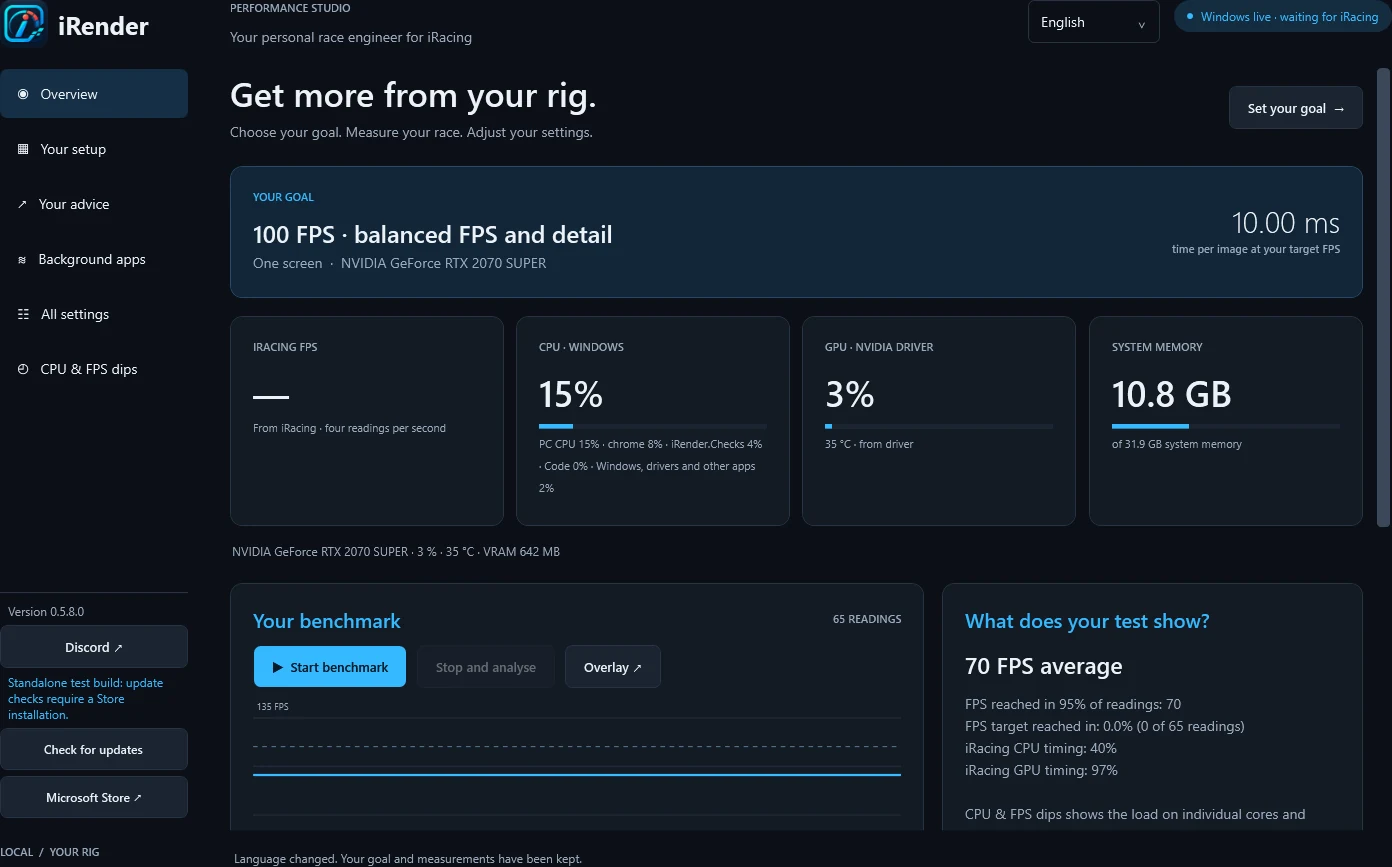
Real app interface. Benchmark figures shown in English screenshots are illustrative test data, not promised performance gains.
A CLEARER PICTURE OF YOUR PERFORMANCE
An average FPS number only tells part of the story. iRender brings your race, hardware and graphics settings together so your next change has a reason.
Record a real iRacing session. See average FPS, lower measured FPS and how often your target is reached. Compare the first minute in traffic with later laps when frame measurements are available.
Inspect CPU cores, readable iRacing threads, GPU load, RAM and VRAM pressure. Repeated dips can reveal useful clues about where to start testing.
Get practical iRacing graphics settings advice with the visual trade-off explained. Choose your changes, create a local back-up and compare another run.
INSIDE PERFORMANCE STUDIO
Real app interface. Benchmark figures shown in English screenshots are illustrative test data, not promised performance gains.
A BETTER ROUTINE, ONE CHANGE AT A TIME
Choose 60–240 FPS, your screen or VR setup, and your preference for performance, balance or detail.
Benchmark a representative session. Keep the car, track, grid, camera and weather comparable.
Close iRacing, apply selected supported changes with a back-up, then repeat the same scenario.
YOUR SETTINGS. YOUR CALL.
Measurements and advice are processed on your PC. Reports are exported only when you choose.
iRender creates a back-up before applying selected changes and offers restore for the last change.
Hardware signals guide experiments. Your results depend on your PC, race conditions and settings; no fixed FPS boost is promised.
IRACING GRAPHICS, WITH A PLAN
The best iRacing graphics settings depend on your hardware and the races you drive. A crowded start, rain, mirrors, a triple-screen setup or VR can change the workload. iRender helps you investigate iRacing FPS issues using your own measurements, then test a practical adjustment instead of copying a one-size-fits-all preset.
Get iRenderFAQ
iRender benchmarks a real iRacing session, checks hardware and FPS signals, and suggests supported graphics settings to test. Each suggestion explains why it may help and what visual detail you may trade away.
It helps you find and test settings that may improve FPS or stability. When measurements show enough headroom, it can suggest testing more visual detail instead. There is no guaranteed FPS increase.
You can choose single, dual, triple-screen or VR setups and a target render resolution. Select the renderer used by your runtime. iRender does not change your resolution automatically.
You select supported changes yourself. Applying them requires iRacing to be closed and creates a local back-up. Some options, including Resolution Scaling modes, are explained as manual checks.
It combines FPS readings with CPU, GPU, memory and readable thread activity. These signals help prioritise tests; they do not prove a single cause. Very short stutters may be missed by sampled telemetry.
iRender is a Windows desktop app with English and Dutch interfaces. Use the Microsoft Store listing for current availability, pricing and system requirements.
HERE TO HELP
Need support, spotted a bug or want to follow the latest updates? Join the iRender Discord server.
YOUR NEXT SESSION CAN TEACH YOU MORE
Pick a goal. Measure your race. Make your next change count.
Get it on Microsoft StoreWindows desktop · English & Dutch · Local measurements